Subscribe for New Post Notifications

Showing posts with label Microsoft Excel. Show all posts
Let's look at some Excel VLookup function examples and explore how to use the VLookup function as a worksheet function in Microsoft Excel:

VLOOKUP function in Microsoft Excel

Summary

The VLOOKUP function searching for a value in the first column of a table and retrieve the value in the same row in the index_num position. VLOOKUP supports approximate and exact matching, and wildcards (* ?) for partial matches. VLOOKUP function performs a vertical lookup. Lookup values must appear in the first column of the table, with lookup columns to the right.
The SUBSTITUTE function is a built-in function in Excel that is categorized as a Lookup & Reference Function.

What Does It Do?

It searches for the value you specify and returns a matching value from another column.

Return value

The matched value from a table.

Syntax

=VLOOKUP (lookup_value, table_array, col_index_num, [range_lookup])

Parameters or Arguments

lookup_value - The value to search for in the first column of a table.
table_array - The range of data from which to retrieve a value.
col_index_num - The column number in the table from which to retrieve a value. The first column is 1.
range_lookup - [optional] Enter FALSE to find an exact match. Enter TRUE to find an approximate match (default).

Formatting

No special formatting is needed.

Usage notes

  • Set range_lookup to (FALSE or 0) to require an exact match and (TRUE or 1) to allow a non-exact match.
  • If you specify FALSE in range_lookup parameter and no exact match is found, then the vlookup function will return #N/A error.
  • If you specify TRUE in range_lookup parameter and no exact match is found, then the next smaller value is returned.
  • If range_lookup parameter is TRUE make sure that lookup values in the first row of the table are sorted in ascending order (top to bottom). else, vlookup may return an incorrect or unexpected value.
  • If range_lookup parameter is FALSE, values in the first column of table do not need to be sorted.
  • If col_index_num is less than 1, the vlookup function will return #VALUE! error. In case is greater than the number of columns in table, the vlookup function will return #REF! error.
  • If you have data organized horizontally, use the HLOOKUP function.
  • Do you want to look up a value based on multiple criteria? Use the INDEX and the MATCH function.
  • Excel VLOOKUP is case-insensitive, meaning that uppercase and lowercase characters are treated as equivalent.
  • Always use absolute cell references (with the $ sign) for the table_array argument to prevent it from changing when copying your formula to other cells.

Example

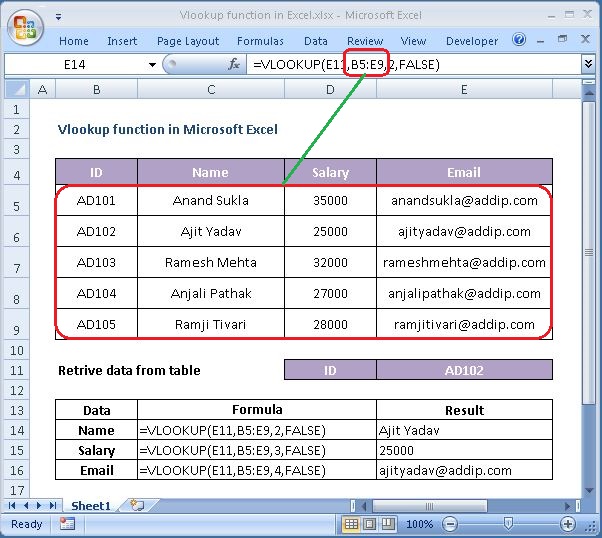
How to use VLOOKUP function in Microsoft Excel.

VLOOKUP function in Microsoft Excel

First Parameter
The first parameter is the value to search for in the table of data.
VLOOKUP function in Microsoft Excel

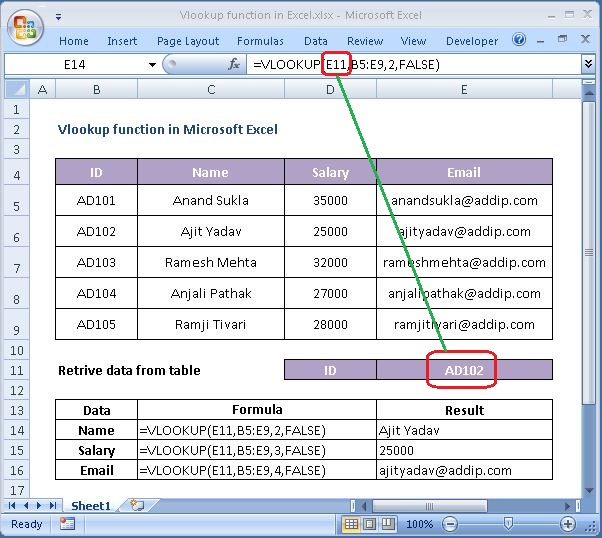
In this example, the first parameter is AD102. This is the value that the VLOOKUP will search for in the first column of the table of data.

Second Parameter
The second parameter is the table or the source of data where the vertical lookup should be performed.
VLOOKUP function in Microsoft Excel

In this example, the second parameter is B5:E9 which gives us to data to use in the vertical lookup.

Third Parameter
The third parameter is the position number in the table where the return data can be found.

VLOOKUP function in Microsoft Excel

In this example, the third parameter is 2. This means that the second column in the table is where we will find the value to return.

Fourth Parameter
The fourth parameter determines whether you are looking for an exact match or approximate match.

VLOOKUP function in Microsoft Excel

In this example, the fourth parameter is FALSE. A parameter of FALSE means VLOOKUP function is looking for an EXACT match for the value of AD102. A parameter of TRUE means that a close match will be returned.

Let's look at some Excel Substitute function examples and explore how to use the Substitute function as a worksheet function in Microsoft Excel:

SUBSTITUTE function

Summary

The SUBSTITUTE function is as similar to the REPLACE function used in the excel. However, SUBSTITUTE function replaces one or more instances of a substituted text string with a specified character(s). Whereas REPLACE function only replaces the text in a specified position/location of a supplied string.
Substitute function can be useful for when you want to substitute old text with a new text in the given text. For example, if the given text is 9988-776-655 and you want it as 9988776655 then you can use SUBSTITUTE function to transform this.
The SUBSTITUTE function is a built-in function in Excel that is categorized as a Text Function.

What Does It Do?

Replace text based on content.

Return value

The string/text Value.

Syntax

=SUBSTITUTE (text, old_text, new_text, [instance_num])

Parameters or Arguments

text - The original string to use to perform the substitution.
old_text - The text to replace.
new_text - The new text to replace with.
instance_num - The instance to replace. If omitted, every occurrence of the old text will be changed to the new text.

Formatting

No special formatting is needed.

Substitute different characters with a single formula

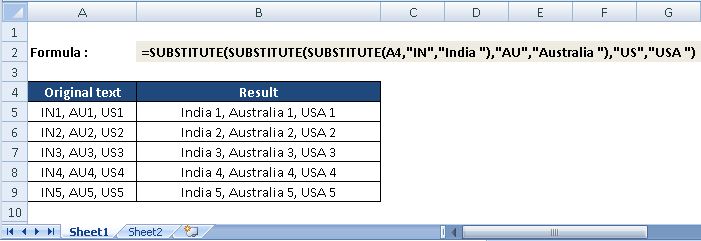
You can nest several SUBSTITUTE functions within a single formula to do several substitutions at a time, i.e. substitute multiple characters with a single formula.

Below are the example of this.

Nested Substitute

Usage notes

  • The Excel Substitute function can replace text by matching. Use the Substitute function when you want to replace text based on its content, not position. Optionally, you can specify the instance of found text to replace (i.e. first instance, second instance, etc.).
  • Substitute function finds and replaces old_text with new_text in a text string.
  • If you specify an instance number, then only that instance of the old text is replaced. Otherwise, every occurrence of old text in the text string is changed to new text.
  • Use SUBSTITUTE function to replace text based on content. Use the REPLACE function to replace text based on its location.
  • Substitute function is case-sensitive.
  • Substitute function does not support wildcards.

Let's look at some Excel Replace function examples and explore how to use the Replace function as a worksheet function in Microsoft Excel:

REPLACE function in Microsoft Excel

Summary

The Excel REPLACE function replaces characters specified by position in a given text string with another text string.
The REPLACE function is a built-in function in Excel that is categorized as a Text Function.

What Does It Do?

Replaces a portion of text with a new piece of text.

Return value

The altered text.

Syntax

=REPLACE (old_text, start_num, num_chars, new_text)

Parameters or Arguments

old_text - The original string value.
start_num - The starting position in the text to replace.
num_chars - The number of characters to replace in old_text.
new_text - The text to replace old_text with.

Formatting

No special formatting is needed.

Usage notes

The REPLACE function is useful for replacing text at a known position in a given string. For example, the following formula replaces 4 characters starting at the 1st character:

=REPLACE("Tech World",1,4,"Information")//
returns "Information World"

  • #NAME? - Occurs if text data entered as the Old_text argument is not enclosed in double quotation marks - row five above.
  • #VALUE! - Occurs if the Start_num or Num_chars arguments are negative or contain non-numeric values - row eight above.
  • Use the REPLACE function when you want to replace text based on a known location.
  • Use FIND or SEARCH to find and replace text when the location is not known in advance.
  • Use SUBSTITUTE to replace one or more instances of text based on content only.

Let's look at some Excel Search function examples and explore how to use the Search function as a worksheet function in Microsoft Excel:

SEARCH function

Summary

The SEARCH function is a way to find a character or string within another cell, and it will return the value associated with the starting place. In other words, if you are trying to figure out where a character is within the cell that contains a word, sentence or other type of information, you could use the SEARCH function.
SEARCH returns the position of the first character of find_text inside within_text. Unlike FIND, SEARCH allows wildcards, and is not case-sensitive.
The SEARCH function is a built-in function in Excel that is categorized as a Text Function.

What Does It Do ?

Get the location of text in a string.

Return value

A number representing the location of find_text.

Syntax

=SEARCH(find_text, within_text, [start_num])

Parameters or Arguments

find_text - The text to find.
within_text - The text to search within.
start_num - Starting position in the text to search. Optional, defaults to 1.

Formatting

No special formatting is needed, the result will be shown as a number.

Usage notes

  • Use the SEARCH function to get the location of one text string inside another.
  • SEARCH returns the position of the first character of find_text inside within_text.
  • SEARCH function is not case-sensitive, the upper-case and lower-case find_text values, "M" and "m", return the same result.
  • SEARCH function allows using the wildcard characters.
  • SEARCH allows the wildcard characters question mark (?) and asterisk (*), in find_text.
  • The ? matches any single character and the * matches any sequence of characters. To find a literal ? or *, use a tilde (~) before the character, i.e. ~* and ~?.
  • If the SEARCH function does not find a match, it will return a #VALUE! error.

Let's look at some Excel Find function examples and explore how to use the Find function as a worksheet function in Microsoft Excel:

FIND function

Summary

The FIND function in Excel is used to return the position of a specific character or sub-string within a text string.
The FIND function is a built-in function in Excel that is categorized as a Text Function.

What Does It Do ?

Get the location of text in a string.

Return value

A number representing the location of find_text.

Syntax

=FIND(find_text, within_text, [start_num])

Parameters or Arguments

find_text - The text to find.
within_text - The text to search within.
start_num - The starting position in the text to search. Optional, defaults to 1.

Formatting

No special formatting is needed, the result will be shown as a number.

Usage notes

  • If the find_text argument contains several characters, the FIND function returns the position of the first character. For example, the formula FIND("en","sentence") returns 2 because "e" in the 2nd letter in the word "sentence".
  • If within_text contains several occurrences of find_text, the first occurrence is returned. For example, FIND("l", "Ball") returns 3, which is the position of the first "l" character in the word "Ball".
  • If find_text is an empty string "", the Excel FIND formula returns the first character in the search string.
  • The location is returned as the number of characters from the start of within_text.
  • Start_num is optional and defaults to 1.
  • The Excel FIND function returns the #VALUE! error if any of the following occurs:
  • =>Find_text does not exist in within_text.
    =>Start_num contains more characters than within_text.
    =>Start_num is 0 (zero) or a negative number.
  • The FIND function is case sensitive and does not allow wildcard characters.
  • If you are looking for a case-insensitive match, use the SEARCH function and/or to use wildcards.

Let's look at some Excel Text function examples and explore how to use the Text function as a worksheet function in Microsoft Excel:

TEXT function

Summary

Text function in excel is basically used to convert the numeric values into a text format that is specified. So, it takes a value and turns it into text based on the numeric format of your choice.
The Text function is a built-in function in Excel that is categorized as a Text Function.

What Does It Do ?

This function converts a number to a piece of text. The formatting for the text needs to be specified in the function.

Return value

A number as text in the given format.

Syntax

=TEXT(value, format_text)

Parameters or Arguments

value - The numerical value that we need to convert to text. format_text - The format we want to apply.

Formatting

No special formatting is required.

When is the Excel TEXT Function required?

  1. We want to display dates in a specified format.
  2. We wish to display numbers in a specified format or in a more legible way.
  3. We wish to combine numbers with text or characters.

Usage notes

  • Use the TEXT function to convert a number to text in a specific number format.
  • The data converted into text cannot be used for calculations. If needed, we should keep the original data in a hidden format and use it for other formulas.
  • TEXT is especially useful when you want to embed the numeric output of a formula or function and present it in a particular format inside other text. For example, "Sales last year increased by over $10,500", where the number 42100 has been formatted with a currency symbol and thousands separator.
  • The TEXT function returns the #NAME? error if you omit the quotation marks around the format code. For example the formula =TEXT(A2, mm/dd/yy) is incorrect and should be written this way: =TEXT(A2, "mm/dd/yy").
  • The TEXT function in Excel is language-specific, and requires using region-specific date and time format codes.
  • format_text must appear in double quotation marks.

Let's look at some Excel Rept function examples and explore how to use the Rept function as a worksheet function in Microsoft Excel:

REPT function

Summary

The Microsoft Excel REPT function returns a repeated text value a specified number of times. For example, =REPT("ABC",3) returns "ABCABCABC".
In financial analysis, This can be useful if you want to fill a cell, or pad values to a certain length. We can also build histograms, a chart commonly used in financial modeling, using the function by translating values directly into a certain number of (repeated) characters.
The Rept function is a built-in function in Excel that is categorized as a Text Function.

What Does It Do ?

Repeats a piece of text a specified number of times.

Return value

The repeated text.

Syntax

=REPT (text, number_times)

Parameters or Arguments

text - The text value to repeat.
number_times - It is the positive number that specifies the number of times to repeat text.

Formatting

No special formatting is needed.

Usage notes

  • The number_times parameter of the REPT function must be a positive number.
  • The result of the REPT function cannot be longer than 32,767 characters, or else it will return a #VALUE! error.
  • If number_times is not an integer, it is truncated. For example, if you use the number 10.8, it will only consider 10 and repeat the specified text 10 number of times.
  • If number_times is 0 (zero), REPT returns “” (empty text).

The REPT function repeats characters a specified number of times. For example, to repeat "A" six times, you can use the following formula:

=REPT("A",6) // returns "AAAAAA"

Inputs to REPT can be variable. In the example shown, REPT is configured to repeat the string in column B using the count in column C. The formula in D5 is:

=REPT(B5,C5) // returns "@@@@@"

Let's look at some Excel Exact function examples and explore how to use the Exact function as a worksheet function in Microsoft Excel:

EXACT function

Summary

The Excel EXACT function compares two text strings, The case of the characters is taken into account, only words which are slept the same and which have upper and lower case characters in the same position will be considered as equal. EXACT is case-sensitive.
In financial analysis, we often need to compare two values while analyzing data and the EXACT function helps us to do the comparison.
The Exact function is a built-in function in Excel that is categorized as a Text Function.

What Does It Do ?

This function compares two items of text and determine whether they are exactly the same.

Return value

Returns TRUE if the two strings are the same.
Returns FALSE if the two strings are different.

Syntax

=EXACT(text1, text2)

Parameters or Arguments

text1 - The first text string to compare.
text2 - The second text string to compare.

Formatting

If the two items of text are exactly the same the result of TRUE will be shown.
If there is any difference in the two items of text the result of FALSE will be shown.

Usage notes

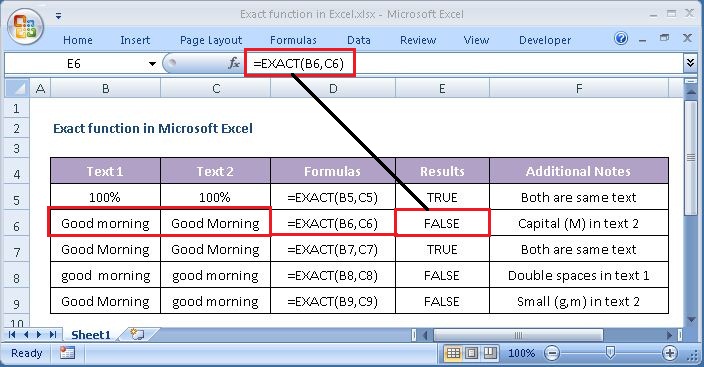
  • The EXACT function is case-sensitive when it compares the two strings but ignores formatting differences (ex. 0.08 = 8%). You can use EXACT to test text being entered into a document.
  • If the two strings are exactly the same, EXACT returns TRUE. If the two strings are not the same (taking into account upper and lower case) EXACT returns FALSE.
  • Erroneous spaces at the beginning or end of the text string will result in a value of FALSE. Use the TRIM Function to remove erroneous spaces <>.

Examples

Below are two examples of the EXACT function used with hard coded strings. In the first example, the strings are identical, in the second example, the only difference is the capital "G":

=EXACT("Good","Good") // returns TRUE
=EXACT("Good","good") // returns FALSE

You can also use a normal equals sign (=) in a formula, but the comparison is not case sensitive:

=("Apple"="apple") // returns TRUE

You can use this result inside the IF function to make a conditional calculation. To display the message “Yes” or “No” for a match.

For Example, =IF(EXACT(A2,B2),”Yes”,”No”).

Let's look at some Excel Dollar function examples and explore how to use the Dollar function as a worksheet function in Microsoft Excel:

DOLLAR function

Summary

The Excel DOLLAR function converts a number to text using the Currency number format. The TEXT function can do the same thing, and is much more versatile.
The Dollar function is a built-in function in Excel that is categorized as a Text Function.

What Does It Do ?

This function converts a number into a piece of text formatted as currency.

Return value

A number as text in currency format.

Syntax

=DOLLAR(number, [decimals])

Parameters or Arguments

Number - The number to be convert into a text string.
[Decimals] - An optional argument that specifies the number of decimal places to be rounded off. If omitted, it takes default value as 2 and rounds off to 2 decimal places.

Formatting

No special formatting is needed. The result will be shown as a text entry.

Usage notes

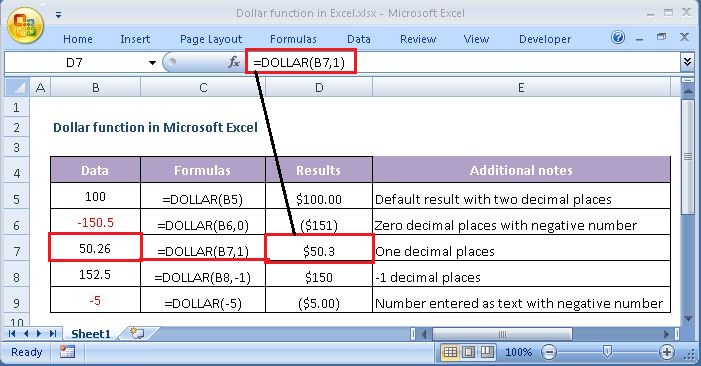
  • This function converts a number to text using currency format, with the decimals rounded to the specified place. The format used is $#,##0.00_);($#,##0.00).
  • The default for decimals is 2. If decimals is negative, number will be rounded to the left of the decimal point.
  • If "decimals" < 0, then "number" is rounded to the left of the decimal point.
  • If "decimals" is empty, then 2 is used.
  • The currency symbol that it applies depends on your language settings. If your language is English (United Kingdon) the symbol used is £. or If your language is English (United state) the symbol used is $.
  • The TEXT function is a more flexible way to achieve the same result.
  • Dollar function can accept only numeric values. Anything other than numeric value the error will be #VALUE!.
  • Dollar function is stored in Excel as text. Therefore, it cannot be used in numeric calculations.
  • If you want to display a value in a currency format and keep it as a number you should apply a Currency Number Format.

Let's look at some Excel Abs function examples and explore how to use the Abs function as a worksheet function in Microsoft Excel:

ABS function

Summary

The Excel ABS function returns the absolute value of a number. Negative numbers are converted to positive numbers, and positive numbers are unaffected.
The Abs function is a built-in function in Excel that is categorized as a Math/Trig Function.

What Does It Do ?

This function calculates the value of a number, irrespective of whether it is positive or negative.
Find the absolute value of a number.

Return value

A positive number.

Syntax

ABS function has one syntax and hence they can be written in Two different ways:

=ABS(number) or
=ABS(cell reference)

Parameters or Arguments

Number - the numeric value for which we need to calculate the Absolute value.
Cell reference: Reference to cells containing number.

Formatting

The result will be shown as a number, no special formatting is needed.

Usage notes

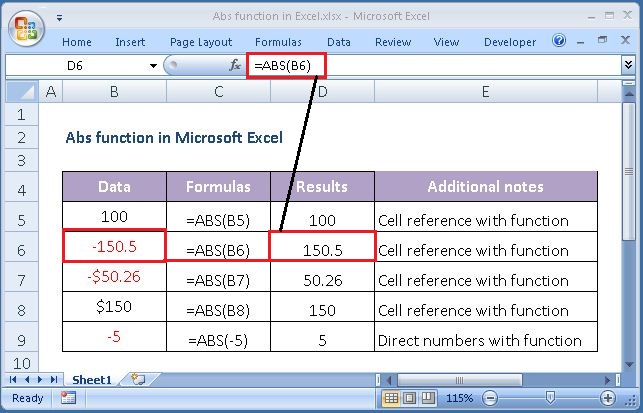
  • For example, ABS(-50) returns a value of 50 and ABS(50) returns a value of 50, because the ABS function returns a number's distance from zero. No changes will happen to positive numbers. Only negative values are converted to positive values.
  • In situations when you need to change negative number to positive numbers, the Excel ABS function is an easy solution. In other words: the ABS function removes the minus sign (-) from a negative number, making it positive.
  • ABS can accept only numeric values. Anything other than numeric value the error will be #VALUE!.

Let's look at some Excel Small function examples and explore how to use the Small function as a worksheet function in Microsoft Excel:

SMALL function

Summary

It's slightly more difficult to find the largest or smallest number in a column. =MAX() shows the largest value and =MIN shows the smallest value. But far more difficult is finding the second smallest value or fourth smallest value.

What now?
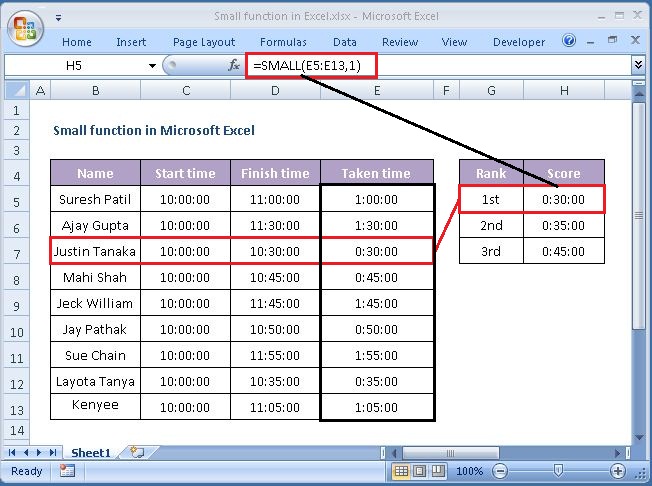
The SMALL function can be used to return the smallest, second smallest, third smallest and nth smallest values from a range.
For example, if all salespersons are given the same target, we can find out which one achieved the sales target in the shortest time for a given year.
The Small function is a built-in function in Excel that is categorized as a Statistical Function.

Purpose

Get the nth smallest value.

Return value

The SMALL function returns a Smallest numeric value.

What Does It Do ?

This function examines a list of values and picks the value at a user specified position in the list.

Syntax

=SMALL(array,k)

Parameters or Arguments

array - A range from which you want to return the nth smallest value
k - The position from the smallest to return.

Formatting

No special formatting is needed.

Usage notes

  • The SMALL Function can be used to find the first, second or the third lowest scores of a test. The SMALL function retrieves numeric values based on their position in a list when sorted by value.
  • If array is empty or non-numeric, the SMALL function will return the #NUM! error.
  • Text values are ignored by the SMALL in Excel and it only recognizes numerical values.
  • When the value of the k argument is less than 1 or greater than the number of values in the given array, the SMALL function will return the #NUM! error.
  • When the supplied k argument is non-numeric, the small function will return the #NAME? error.
  • The small function would return an error if there is an error value anywhere in your data set or array.

Please note that Microsoft Excel uses “k” instead of “n”. We are using “nth”, because it is more easier to understand the LARGE formula in Excel.

Let's look at some Excel Large function examples and explore how to use the Large function as a worksheet function in Microsoft Excel:

LARGE function

Summary

It's slightly more difficult to find the largest or smallest number in a column. =MAX() shows the largest value and =MIN shows the smallest value. But far more difficult is finding the second largest value and third largest value.

What now?
The LARGE function can be used to return the largest, second largest, third largest and kth largest values from a range.
The Large function is a built-in function in Excel that is categorized as a Statistical Function.

Purpose

Get the nth largest value.

Return value

The LARGE function returns a largest numeric value.

What Does It Do ?

This function examines a list of values and picks the value at a user specified position in the list.

Syntax

=LARGE(array,k)

Parameters or Arguments

array - A range from which you want to return the nth largest value
k - The position from the largest to return.

Formatting

No special formatting is needed.

Usage notes

  • The LARGE Function can be used to find the first, second or the third highest scores of a test. The LARGE function retrieves numeric values based on their position in a list when sorted by value.
  • If array is empty or non-numeric, the LARGE function will return the #NUM! error.
  • Text values are ignored by the LARGE in Excel and it only recognizes numerical values.
  • When the value of the k argument is less than 1 or greater than the number of values in the given array, the LARGE function will return the #NUM! error.
  • When the supplied k argument is non-numeric, the large function will return the #NAME? error.
  • The large function would return an error if there is an error value anywhere in your data set or array.

Please note that Microsoft Excel uses “k” instead of “n”. We are using “nth”, because it is more easier to understand the LARGE formula in Excel.

Let's look at some Excel Concatenate function examples and explore how to use the Concatenate function as a worksheet function in Microsoft Excel:

CONCATENATE function

Summary

In your Excel workbooks, the data is not always structured according to your needs. Often you may want to combine data from two or more columns into a single column.
The Excel CONCATENATE function allows you to join 2 or more strings together. The CONCAT function replaces CONCATENATE in newer versions (Excel 2019) of Excel.
The Concatenate function is a built-in function in Excel that is categorized as a Text Function.

Purpose

Join text together

Return value

Text joined together.

What Does It Do ?

This function joins separate pieces of text into one item.

Syntax

CODE function has one syntax and hence they can be written in Two different ways:

=CONCATENATE (text1, text2,...) or
=CONCATENATE (cell reference1, cell reference2,...)

Parameters or Arguments

Text - The text value to join together.
Cell reference - Reference to cells containing value..

Formatting

No special formatting is needed, the result will be shown as normal text.

Usage notes

  • In versions of Excel 2007 and later We can join up to 255 text items that are up to 8192 characters together. but in Excel 2003, the function can only accept up to 30 text arguments.
  • Text items can include text strings, numbers, or cell references that refer to one cell.
  • Numbers are converted to text when joined. If you need to specify a number format for a number being joined, see the TEXT function.
  • Similarly to the CONCATENATE function, you can use "&" in Excel to combine different text strings, cell values and results returned by other functions. This method come in very handy in many scenarios because typing the ampersand sign (&) is much quicker than typing the word "concatenate".
  • If at least one of the CONCATENATE function's arguments is invalid, the formula returns a #VALUE! error.
  • If we directly write the string without double quotes, CONCATENATE will not recognize it as a string and will throw an error #NAME?
  • Numbers don’t need to be in quotation marks.
  • Excel CONCATENATE does not recognize arrays. Each cell reference must be listed separately. For example, you should write =CONCATENATE(A1, A2, A3) instead of =CONCATENATE(A1:A3).
  • In recent versions of excel Microsoft has developed a new function called TEXTJOIN by looping through arrays.

Excel CONCATENATE function vs. operator

Many users wonder which is a more efficient way to concatenate strings in Excel - CONCATENATE function or "&" operator.

The only essential difference between CONCATENATE and "&" operator is the 255 strings limit of the Excel CONCATENATE function and no such limitations when using the ampersand. Other than that, there is no difference between these two concatenation methods, nor is there any speed difference between the CONCATENATE and "&" formulas.

And since 255 is a really big number and in real-life tasks someone will hardly ever need to combine that many strings, the difference boils down to the comfort and ease of use. Some users find CONCATENATE formulas easier to read, I personally prefer using the "&" method. So, simply stick to the concatenation technique that you feel more comfortable with.

Let's look at some Excel Code function examples and explore how to use the Code function as a worksheet function in Microsoft Excel:

CODE function

Summary

The CODE function is the inverse of the CHAR function. CODE Function in Excel is a function that returns the code number (ASCII code) specified by the character from the character set for your computer.
For example, CODE("A") returns the code 65. The CODE function can be used to figure out numeric codes supplied to the CHAR function.
The CODE Function is not that much popular among excel community but as an excel expert, you should be aware of this function.
The Code function is a built-in function in Excel that is categorized as a Text Function.

Purpose

Get the code for a character.

Return value

A numeric code representing a character.

What Does It Do ?

This function shows the ANSI value of a single character, or the first character in a piece of text.

Syntax

CODE function has one syntax and hence they can be written in Two different ways:

=CODE("text") or
=CODE(cell reference)

Parameters or Arguments

Text - The text for which you want a numeric code.
Cell reference: Reference to cells containing text.

Formatting

No special formatting is needed, the result will be shown as a number between 1 and 255.

Usage notes

  • CODE returns a numeric code for the first character in a text string. The code is based on the character set used by your computer.
  • We get VALUE# error – It occurs when: The text argument is left empty.
  • The return type of CODE Function is a numeric value.
  • Excel functions CHAR and UNICHAR will return the character for a given code whereas Excel functions CODE and UNICODE will do the opposite – give the code for a given character.

What is ASCII code?

ASCII stands for American Standard Code For Information Interchange, is a character encoding standard for the digital communications. For each character that can be typed, has a unique integer number associated with it, may it be a character set, digits, punctuation marks, special characters, or control characters. For example, the ASCII value for [space] is 032. ASCII values ranging from 097-122 are reserved for the alphabets a-z in lower case.

You can Download a list of all 255 numbers and the characters they represent.
CODE function

Let's look at some Excel Char function examples and explore how to use the Char function as a worksheet function in Microsoft Excel:

CHAR function

Summary

The CHAR function is the inverse of the CODE function. CHAR Function in Excel is a function that returns the character specified by the code number (ASCII code) from the character set for your computer.
CHAR can be used to specify characters that are hard to enter in a formula. For example, CHAR(10) returns a line break on Windows, and CHAR(13) returns a line break on the Mac.
The Char function is a built-in function in Excel that is categorized as a Text Function.

Purpose

Get a character from a number

Return value

A single character specified by a number.

What Does It Do ?

This function converts a normal number to the character it represent in the ANSI character set used by Windows.

Syntax

CHAR function has one syntax and hence they can be written in Two different ways:

=CHAR(number) or
=CHAR(cell reference)

Parameters or Arguments

Number - A number between 1 and 255.
Cell reference: Reference to cells containing number.

Formatting

The result will be a character with no special formatting.

Usage notes

  • Use CHAR to translate code page numbers into actual characters.
  • CHAR can be useful when you want to specify characters in formulas or functions that are awkward or impossible to type directly. For example, you can use CHAR(10) to add a line break in a formula on Windows, and CHAR(13) to add a line break on the Mac.
  • The character set may vary across different operating systems and so, for a specific number, the function may return different results on different computers. Windows OS uses the ANSI character set, whereas Macintosh uses the Macintosh character set.
  • We get VALUE# error – It occurs when: The given argument is not an integer between 1 to 255 and If the argument entered is zero.
  • Excel functions CHAR and UNICHAR will return the character for a given code whereas Excel functions CODE and UNICODE would do the opposite – give the code for a given character.
  • For numbers greater than 255, we can use the UNICHAR function.

What is ASCII code?

ASCII stands for American Standard Code For Information Interchange, is a character encoding standard for the digital communications. For each character that can be typed, has a unique integer number associated with it, may it be a character set, digits, punctuation marks, special characters, or control characters. For example, the ASCII value for [space] is 032. ASCII values ranging from 097-122 are reserved for the alphabets a-z in lower case.

You can Download a list of all 255 numbers and the characters they represent.
CHAR function

Let's look at some Excel Clean function examples and explore how to use the Clean function as a worksheet function in Microsoft Excel:

CLEAN function

Summary

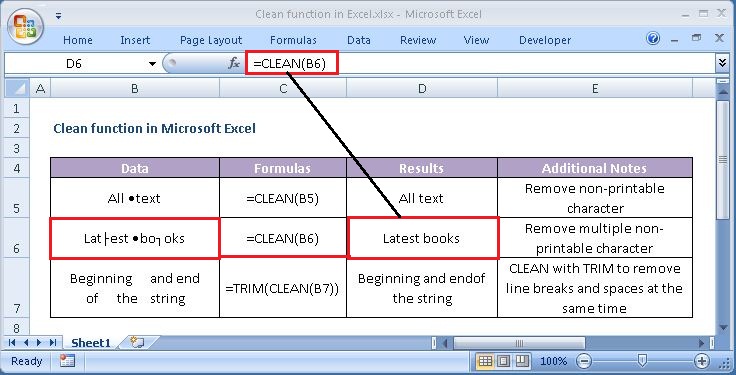
As financial analysts, we would often import data from various sources and the CLEAN function would help remove non-printable characters from THE supplied text string. It is also useful in removing line breaks.
The Clean function is a built-in function in Excel that is categorized as a Text Function.

Purpose

Strip non-printable characters from text

Return value

CLEAN function returns a text value.

What Does It Do ?

This function removes any non-printable characters from text.
These non-printable characters are often found in data which has been imported from other systems such as database imports from mainframes.

Syntax

CLEAN function has one syntax and hence they can be written in Two different ways:

=CLEAN(text) or
=CLEAN(cell reference)

Parameters or Arguments

Text: The text from which to clean.
Cell reference: Reference to cells containing text.

Formatting

No special formatting is needed.

Usage notes

  • You can use CLEAN to remove characters that are not printable from text.
  • You can also use CLEAN to strip line breaks from text.
  • The Clean function cannot handle two characters: Character 127, which is a vertical rectangle, and character 160, which is a non-breaking space typically used for websites. If your data contains these characters, you need to use a different technique. The Substitute and/or Trim function can remove these characters.
  • The CLEAN function removes the first 32 (non-printable) characters in the 7-bit ASCII code (values 0 through 31) from text.
  • In the Unicode character set, there are additional non-printable characters (values 127, 129, 141, 143, 144, and 157). By itself, the CLEAN function does not remove these additional non-printable characters.
  • The function was introduced in Excel 2000 and is available in all versions after that.

Below are the list of all non-printable character

all non-printable character

Let's look at some Excel Trim function examples and explore how to use the Trim function as a worksheet function in Microsoft Excel:

TRIM function

Summary

The Excel TRIM function remove extra spaces from text, leading only a single space between words and no space characters at the start or end of the text.
In financial analysis, the TRIM function can be useful in removing irregular spacing from data imported from other applications.
The Trim function is a built-in function in Excel that is categorized as a Text Function.

Purpose

Remove extra spaces from text.

Return value

Text with removed extra spaces.

What Does It Do ?

This function removes unwanted spaces from a piece of text.
The spaces before and after the text will be removed completely.
Multiple spaces within the text will be trimmed to a single space.

Syntax

TRIM function has one syntax and hence they can be written in Two different ways:

=TRIM(text) or
=TRIM(cell reference)

Parameters or Arguments

Text: The text from which to remove extra space.
Cell reference: Reference to cells containing text.

Formatting

No special formatting is needed.

Usage notes

  • TRIM function will remove unnecessary spaces between words in a string.Thus, it will leave only single spaces between words and no space characters at the start or end of the text.
  • TRIM is useful when cleaning up text that has come from other applications or environments.
  • Excel TRIM Function is only able to remove the ASCII space character (32) from text/string.

TRIM function not working

The TRIM function is designed to remove only the space character, represented by code value 32 in the 7-bit ASCII character set. In the Unicode character set, there is one more space character called the non-breaking space, which is commonly used on web pages as the html character. The non-breaking space has a decimal value of 160, and the TRIM function cannot remove it by itself.

Let's look at some Excel Len function examples and explore how to use the Len function as a worksheet function in Microsoft Excel:

LEN function

Summary

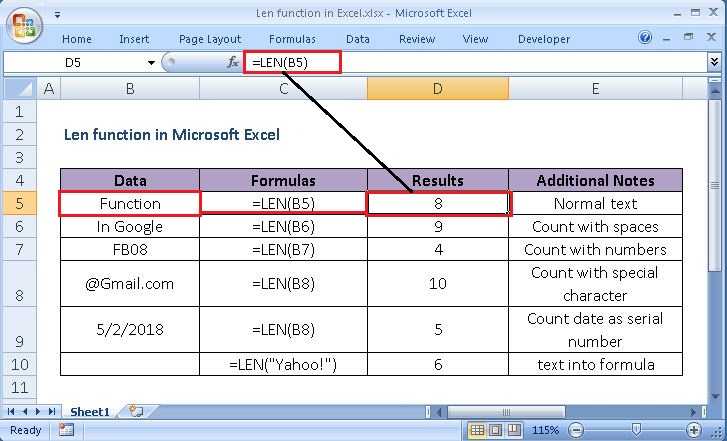
LEN function can be useful if we wish to get the length of a given text string as the number of characters. LEN function will also count characters in numbers,special character, spaces, but number formatting is not included.
The Len function is a built-in function in Excel that is categorized as a Text Function.

Purpose

Get the length of given text string.

Return value

A numeric value.

What Does It Do ?

This function counts the number of characters, including spaces and numbers, in a piece of text.

Syntax

Len function has one syntax and hence they can be written in Two different ways:

=LEN(text) or
=LEN(cell reference)

Parameters or Arguments

Text: It is the text for which to calculate the length.
Cell reference: Reference to cells containing text.

Formatting

No special formatting is needed.

Usage notes

  • LEN is a useful when you want to count how many characters there are in some text.
  • LEN Function in Excel can be used to count the number of character in a text string and able to count letters, numbers, dates, special characters, non-printable characters, and all spaces from an excel cell.
  • LEN Function counts the characters in the value of a cell and not concerned with formatting. (i.e. the length of "88" formatted as "$88.00" is still 2).
  • Excel ignores cell formatting and uses raw data. It is of no use to use the LEN function on a date because Excel will always return a value of 5. Because Excel always stores a date as a 5-digit serial number.
  • If the cell is empty then Length function return 0 as output.
  • If letters are entered directly into the LEN function, they must be wrapped in double quotes or Excel will display the #NAME? error. Excel does not count the quotation marks.
  • If numbers are entered directly into the LEN function, they do not need to be wrapped in double quotes: both =LEN(12345) and =LEN("12345") are proper and produce a value of 5.

Let's look at some Excel Proper function examples and explore how to use the Proper function as a worksheet function in Microsoft Excel:

PROPER function

Summary

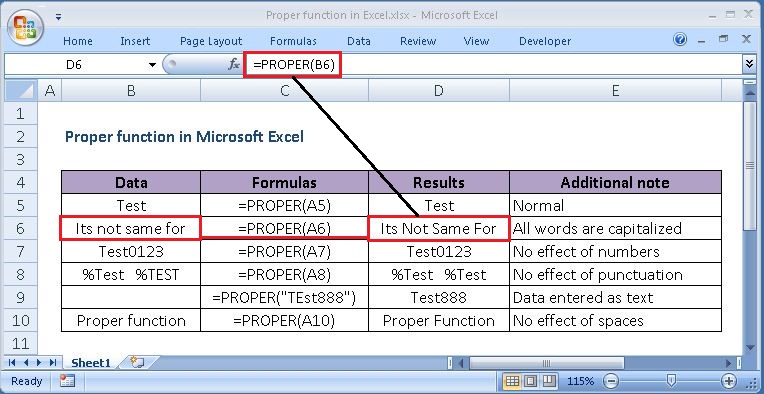
The Excel PROPER function Capitalizes the first letter in a text string and Converts all other letters to lowercase letters.
The PROPER function in excel will not affect numbers, special characters and punctuation in the given text or string. It will only convert the first character to upper case and all the other letters to lowercase.
The Proper function is a built-in function in Excel that is categorized as a Text Function.

Purpose

Capitalize the first letter in each word.

Return value

Text in proper case.

What Does It Do ?

This function converts the first letter of each word to uppercase, and all subsequent letters are converted to lower case.

Syntax

Proper function has one syntax and hence they can be written in Two different ways:

=PROPER(text) or
=PROPER(cell reference)

Parameters or Arguments

Text: A Text which you want converts to proper case.
Cell reference: Reference to cells containing text.

Formatting

No special formatting is needed.

Usage notes

  • It will only convert the first letters in text string to uppercase and all the other letters to lowercase in each word.
  • Numbers, special characters and punctuation characters are not affected by the use of PROPER function in the string.
  • Proper function converts the 's in the text (tammy's) to uppercase (i.e. Tammy'S).
  • If you use a null character or a reference to an empty cell, it will return a null character.
  • If the referred text is an error it will return an error in the result.
  • You can also insert text string directly into the function by using double quotation marks.

Let's look at some Excel Upper function examples and explore how to use the Upper function as a worksheet function in Microsoft Excel:

UPPER function

Summary

The Excel UPPER function will return the uppercase version of the text string given. Numbers and punctuation are not affected when we use UPPER function.
UPPER can be useful in arranging data or creating data in a certain format. For example, we often import data from external sources. The UPPER function will help us convert text to upper case if required.
The Upper function is a built-in function in Excel that is categorized as a Text Function.

Purpose

Convert text to upper case (capital letters).

Return value

Text in upper case

What Does It Do ?

This function converts all characters in a piece of text to upper case.

Syntax

Upper function has one syntax and hence they can be written in Two different ways:

=UPPER(text) or
=UPPER(cell reference)

Parameters or Arguments

Text: A Text which you want converts to upper case.
Cell reference: Reference to cells containing text.

Formatting

No special formatting is needed.

Usage notes

  • All letters in text are converted to upper case.
  • Numbers and punctuation characters are not affected when we use UPPER function.
  • Anything other than letters will remain unaffected.
  • If the referred text is an error it will return an error in the result.
  • You can also insert text string directly into the function by using double quotation marks.